How I Built a Personal Screen Time Tracker for Mac and iPhone Using Claude
This post was co-written with Claude Code.
I wanted to track my screen time across all my devices in a way that I actually owned the data. Apple’s built-in Screen Time is fine, but you can’t export it, query it, or build custom visualizations. So I sat down with Claude (in Claude Code) and we built a system that extracts screen time data from both my Mac and iPhone, stores it in a simple CSV, and runs automatically every few hours.
This post documents exactly how we did it, so you can replicate it yourself.
What We Built
- A Python script that extracts screen time data from macOS’s
knowledgeC.db(Mac usage) and Apple’s Biome system (iPhone usage synced to Mac) - Automatic deduplication so running the script multiple times doesn’t create duplicate entries
- A launchd job that runs the collection every 6 hours
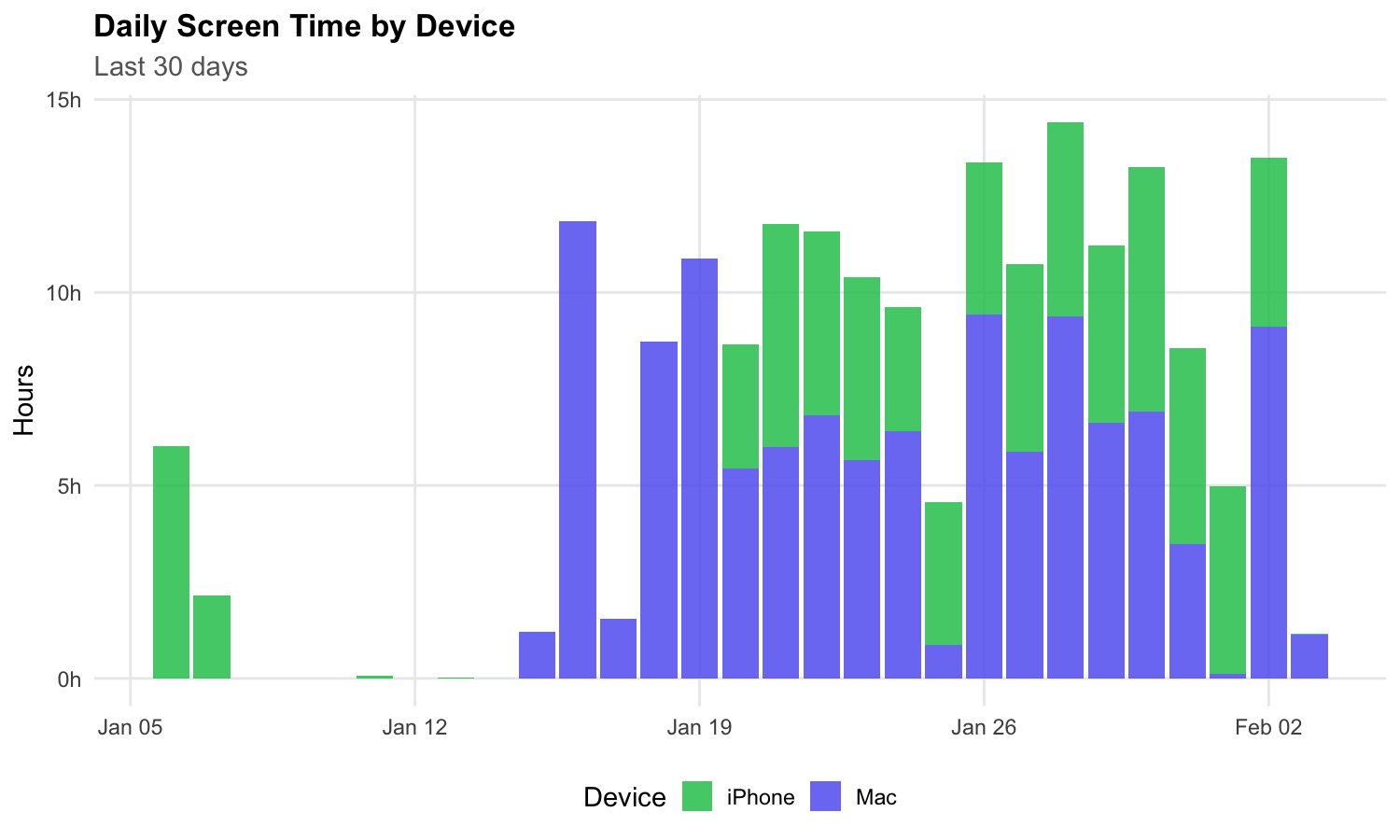
- R/ggplot2 visualizations for exploring the data
The final CSV has this schema:
| Column | Description |
|---|---|
| app | Bundle identifier (e.g., com.google.Chrome) |
| usage | Duration in seconds |
| start_time | Unix timestamp |
| end_time | Unix timestamp |
| created_at | Unix timestamp (used for deduplication) |
| tz | Timezone offset in seconds |
| device_id | Device UUID (empty for Mac) |
| device_model | Device model or “Mac” |
Prerequisites
- macOS (tested on Ventura/Sonoma)
- Python 3
- R with tidyverse (for visualizations)
- An iPhone that syncs with your Mac via iCloud
- Terminal.app with Full Disk Access granted
Step 1: Grant Full Disk Access
The screen time databases are protected. You need to grant Full Disk Access to Terminal (and later /bin/bash for automation).
- Open System Settings > Privacy & Security > Full Disk Access
- Click + and add Terminal.app (from /Applications/Utilities/)
- You may need to restart Terminal
Step 2: Clone aw-import-screentime
We use aw-import-screentime to extract iPhone data from Apple’s Biome system. This tool reads the App.InFocus files that sync from your iPhone to your Mac.
cd ~/Desktop/codes/data_analysis/screentime  # or wherever you want
git clone https://github.com/ActivityWatch/aw-import-screentime.git
cd aw-import-screentime
python3 -m venv .venv
.venv/bin/pip install -e .
Test it:
.venv/bin/aw-import-screentime events preview --since 7d
You should see JSON output with your iPhone app usage. If you get a permission error, double-check Full Disk Access.
Step 3: Create the Collection Script
Create collect_screentime.py:
#!/usr/bin/env python3
"""
Unified Screen Time Data Collection Script
Extracts both Mac (knowledgeC.db) and iPhone (Biome App.InFocus) data
into a single CSV file.
"""

import csv
import json
import os
import subprocess
from datetime import datetime
from pathlib import Path

# Configuration
SCRIPT_DIR = Path(__file__).parent
OUTPUT_CSV = SCRIPT_DIR / "screentime_data.csv"
LAST_TIMESTAMP_FILE = SCRIPT_DIR / "screentime_data.csv.last"
AW_IMPORT_BIN = SCRIPT_DIR / "aw-import-screentime" / ".venv" / "bin" / "aw-import-screentime"
KNOWLEDGE_DB = Path.home() / "Library/Application Support/Knowledge/knowledgeC.db"

CSV_COLUMNS = ["app", "usage", "start_time", "end_time", "created_at", "tz", "device_id", "device_model"]


def get_last_timestamp():
    """Get the last extraction timestamp to avoid duplicates."""
    if LAST_TIMESTAMP_FILE.exists():
        with open(LAST_TIMESTAMP_FILE, "r") as f:
            return float(f.read().strip())
    return 0.0


def save_last_timestamp(ts):
    """Save the last extraction timestamp."""
    with open(LAST_TIMESTAMP_FILE, "w") as f:
        f.write(str(ts))


def extract_mac_data(last_created_at):
    """Extract Mac Screen Time data from knowledgeC.db."""
    import sqlite3

    if not KNOWLEDGE_DB.exists():
        print(f"[Mac] knowledgeC.db not found at {KNOWLEDGE_DB}")
        return []

    if not os.access(KNOWLEDGE_DB, os.R_OK):
        print("[Mac] knowledgeC.db not readable. Grant Full Disk Access to Terminal.")
        return []

    query = """
    SELECT
        ZOBJECT.ZVALUESTRING AS "app",
        (ZOBJECT.ZENDDATE - ZOBJECT.ZSTARTDATE) AS "usage",
        (ZOBJECT.ZSTARTDATE + 978307200) as "start_time",
        (ZOBJECT.ZENDDATE + 978307200) as "end_time",
        (ZOBJECT.ZCREATIONDATE + 978307200) as "created_at",
        ZOBJECT.ZSECONDSFROMGMT AS "tz",
        NULL AS "device_id",
        'Mac' AS "device_model"
    FROM ZOBJECT
    LEFT JOIN ZSTRUCTUREDMETADATA ON ZOBJECT.ZSTRUCTUREDMETADATA = ZSTRUCTUREDMETADATA.Z_PK
    LEFT JOIN ZSOURCE ON ZOBJECT.ZSOURCE = ZSOURCE.Z_PK
    WHERE
        ZSTREAMNAME = "/app/usage" AND
        (ZOBJECT.ZCREATIONDATE + 978307200) > ?
    ORDER BY ZCREATIONDATE DESC
    """

    try:
        with sqlite3.connect(KNOWLEDGE_DB) as conn:
            cursor = conn.cursor()
            cursor.execute(query, (last_created_at,))
            rows = cursor.fetchall()
            print(f"[Mac] Extracted {len(rows)} new records")
            return rows
    except Exception as e:
        print(f"[Mac] Error: {e}")
        return []


def extract_iphone_data(since_days=28, last_created_at=0.0):
    """Extract iPhone Screen Time data from Biome using aw-import-screentime."""
    if not AW_IMPORT_BIN.exists():
        print(f"[iPhone] aw-import-screentime not found at {AW_IMPORT_BIN}")
        return []

    all_events = []
    skipped_count = 0

    try:
        print(f"[iPhone] Extracting events from last {since_days} days...")
        result = subprocess.run(
            [str(AW_IMPORT_BIN), "events", "preview", "--since", f"{since_days}d"],
            capture_output=True, text=True, timeout=300
        )

        if result.returncode != 0:
            print(f"[iPhone] Error: {result.stderr[:500]}")
            return []

        # Output format: [{"device_id": "...", "files_scanned": N, "events": [...]}, ...]
        devices_data = json.loads(result.stdout)
        print(f"[iPhone] Found {len(devices_data)} device(s)")

        for device_data in devices_data:
            device_id = device_data.get("device_id", "unknown")
            events = device_data.get("events", [])

            if not events:
                continue

            print(f"[iPhone] Device {device_id[:8]}...: {len(events)} events")

            for event in events:
                timestamp = event.get("timestamp")
                duration = event.get("duration_seconds", 0)
                app = event.get("data", {}).get("app", "unknown")

                if timestamp:
                    try:
                        dt = datetime.fromisoformat(timestamp.replace("Z", "+00:00"))
                        start_time = dt.timestamp()
                        end_time = start_time + duration
                        created_at = end_time

                        # Skip already-collected events
                        if created_at <= last_created_at:
                            skipped_count += 1
                            continue

                        all_events.append((
                            app, int(duration), start_time, end_time,
                            created_at, 0, device_id, "iPhone"
                        ))
                    except Exception as e:
                        print(f"[iPhone] Error parsing event: {e}")

    except json.JSONDecodeError as e:
        print(f"[iPhone] JSON parse error: {e}")
        return []
    except subprocess.TimeoutExpired:
        print("[iPhone] Timeout")
        return []
    except Exception as e:
        print(f"[iPhone] Error: {e}")
        return []

    print(f"[iPhone] Extracted {len(all_events)} new events (skipped {skipped_count} duplicates)")
    return all_events


def write_to_csv(mac_rows, iphone_rows):
    """Append new data to the CSV file."""
    file_exists = OUTPUT_CSV.exists()
    all_rows = list(mac_rows) + list(iphone_rows)

    if not all_rows:
        print("[Output] No new data")
        return

    with open(OUTPUT_CSV, "a", newline="") as f:
        writer = csv.writer(f, quoting=csv.QUOTE_MINIMAL)
        if not file_exists:
            writer.writerow(CSV_COLUMNS)
        writer.writerows(all_rows)

    print(f"[Output] Wrote {len(all_rows)} records to {OUTPUT_CSV}")

    # Update last timestamp
    max_created_at = max(row[4] for row in all_rows if row[4])
    save_last_timestamp(max_created_at)


def main():
    print(f"=== Screen Time Collection - {datetime.now().isoformat()} ===\n")

    last_ts = get_last_timestamp()
    if last_ts > 0:
        print(f"[Config] Last extraction: {datetime.fromtimestamp(last_ts).isoformat()}")
    else:
        print("[Config] First run - extracting all available data")

    mac_rows = extract_mac_data(last_ts)
    iphone_rows = extract_iphone_data(since_days=28, last_created_at=last_ts)
    write_to_csv(mac_rows, iphone_rows)

    print("\n=== Collection Complete ===")


if __name__ == "__main__":
    main()
Create a wrapper script run_screentime_collection.sh:
#!/bin/bash
SCRIPT_DIR="/path/to/your/screentime"  # Update this path
LOG_FILE="$SCRIPT_DIR/logs/collection_$(date +%Y%m%d_%H%M%S).log"

mkdir -p "$SCRIPT_DIR/logs"
cd "$SCRIPT_DIR"

echo "Starting Screen Time Collection at $(date)" | tee "$LOG_FILE"
python3 "$SCRIPT_DIR/collect_screentime.py" 2>&1 | tee -a "$LOG_FILE"
echo "Completed at $(date)" | tee -a "$LOG_FILE"

# Keep only last 10 log files
ls -t "$SCRIPT_DIR/logs/collection_"*.log 2>/dev/null | tail -n +11 | xargs rm -f 2>/dev/null
Make it executable:
chmod +x run_screentime_collection.sh
Test it:
./run_screentime_collection.sh
Step 4: Set Up Automatic Collection with launchd
We use launchd (macOS’s native task scheduler) rather than cron because it integrates better with macOS permissions.
First, grant Full Disk Access to /bin/bash:
- Open System Settings > Privacy & Security > Full Disk Access
- Click +, press Cmd+Shift+G, type
/bin/bash, and add it
Create the launchd plist:
cat > ~/Library/LaunchAgents/com.yourname.screentime.plist << 'EOF'
<?xml version="1.0" encoding="UTF-8"?>
<!DOCTYPE plist PUBLIC "-//Apple//DTD PLIST 1.0//EN" "http://www.apple.com/DTDs/PropertyList-1.0.dtd">
<plist version="1.0">
<dict>
    <key>Label</key>
    <string>com.yourname.screentime</string>
    <key>ProgramArguments</key>
    <array>
        <string>/path/to/your/screentime/run_screentime_collection.sh</string>
    </array>
    <key>StartInterval</key>
    <integer>21600</integer>
    <key>RunAtLoad</key>
    <true/>
    <key>StandardOutPath</key>
    <string>/path/to/your/screentime/logs/launchd.log</string>
    <key>StandardErrorPath</key>
    <string>/path/to/your/screentime/logs/launchd.err</string>
</dict>
</plist>
EOF
Important: Update the paths in the plist to match your setup.
Load it:
launchctl load ~/Library/LaunchAgents/com.yourname.screentime.plist
Verify it’s running:
launchctl list | grep screentime
You should see something like:
84578 0 com.yourname.screentime
The 0 means it ran successfully. If you see a non-zero exit code like 126, check the logs:
cat /path/to/your/screentime/logs/launchd.err
Common issues:
- “Operation not permitted”:
/bin/bashneeds Full Disk Access - Script not found: Check the path in your plist
Step 5: Visualize the Data
Here’s a simple R script to generate visualizations. Save it as visualize_screentime.R:
library(tidyverse)
library(lubridate)
library(scales)

df <- read_csv("screentime_data.csv")

df <- df %>%
  mutate(
    start_datetime = as_datetime(start_time),
    date = as_date(start_datetime),
    usage_minutes = usage / 60,
    device = if_else(is.na(device_id) | device_id == "", "Mac", "iPhone"),
    app_name = str_extract(app, "[^.]+$")
  )

# Daily usage by device
daily_by_device <- df %>%
  group_by(date, device) %>%
  summarise(hours = sum(usage_minutes, na.rm = TRUE) / 60, .groups = "drop") %>%
  filter(date >= today() - days(30))

ggplot(daily_by_device, aes(x = date, y = hours, fill = device)) +
  geom_col() +
  scale_fill_manual(values = c("Mac" = "#6366F1", "iPhone" = "#22C55E")) +
  labs(
    title = "Daily Screen Time by Device",
    x = NULL, y = "Hours", fill = "Device"
  ) +
  theme_minimal()

ggsave("plot_device_daily.png", width = 10, height = 6, dpi = 150)
Run it:
Rscript visualize_screentime.R
How It Works
Mac Data
macOS stores app usage in ~/Library/Application Support/Knowledge/knowledgeC.db, a SQLite database. The relevant table is ZOBJECT with ZSTREAMNAME = "/app/usage". Timestamps are in Apple’s “Cocoa Core Data” format (seconds since January 1, 2001), so we add 978307200 to convert to Unix timestamps.
iPhone Data
When you have an iPhone linked to the same iCloud account, usage data syncs to your Mac in ~/Library/Biome/. The aw-import-screentime tool parses the protobuf files in App.InFocus/local/ to extract app usage events.
Deduplication
Both data sources can return overlapping data on subsequent runs. We track the most recent created_at timestamp in a .last file and only append records newer than that.
Useful Commands
| Action | Command |
|---|---|
| Manual collection | ./run_screentime_collection.sh |
| Check launchd status | launchctl list | grep screentime |
| View recent logs | tail -50 logs/launchd.log |
| Run manually via launchd | launchctl start com.yourname.screentime |
| Stop automation | launchctl unload ~/Library/LaunchAgents/com.yourname.screentime.plist |
Troubleshooting
“knowledgeC.db not readable” Grant Full Disk Access to Terminal.app in System Settings.
“Operation not permitted” in launchd
Grant Full Disk Access to /bin/bash.
iPhone data is empty
Make sure your iPhone syncs with your Mac via iCloud. Check that ~/Library/Biome/ contains data. The aw-import-screentime tool only works with synced data, not directly from the iPhone.
Duplicate data appearing
Check that screentime_data.csv.last exists and contains a recent timestamp. If it’s missing or corrupted, the script will re-extract everything.
Final Thoughts
This whole setup took about an hour of back-and-forth with Claude in Claude Code. The tricky parts were:
- Figuring out the right JSON format from
aw-import-screentime(it changed between versions) - Getting launchd permissions right (macOS is strict about Full Disk Access)
- Implementing proper deduplication so the CSV doesn’t balloon with repeated runs
The result is a simple, reliable system that gives me full ownership of my screen time data. I can query it with SQL, visualize it in R or Python, or build whatever dashboards I want.